Skip to content
Deliver AUS

Getting started

How to sign up

Choose a bicycle, motorbike/scooter or car first, then follow the Uber Eats signup tutorial for Australia.

Uber may update the signup process, so some screens may vary.

Independent guide — not affiliated with or endorsed by Uber. Signup requirements, screens and offers may change.

Choose your delivery method

Compare the options below, then choose the one that best fits how and where you plan to deliver.

Bicycle / E-bike


Best for

  • Dense Sydney neighbourhoods
  • Short-distance deliveries
  • Low startup and running costs

Main advantages

  • Very easy parking
  • No fuel cost
  • Easy to stop close to restaurants and customers

Main limitations

  • Weather exposure
  • More effort on hills
  • Limited carrying capacity
Choose bicycle
Deliver AUS pickSelected ✓

Motorbike / Scooter

Best all-round for Sydney

Best for

  • Inner and middle Sydney suburbs
  • Wider coverage than a bicycle
  • Easier parking than a car

Main advantages

  • Fast movement between neighbourhoods
  • Lower running costs than a car
  • A balance of speed, cost and flexibility

Main limitations

  • Fuel, maintenance, registration and insurance
  • An appropriate licence is required
  • Weather exposure and higher safety risk than a car
Choose motorbike / scooter

Car


Best for

  • Rain, or very hot or cold weather
  • Large supermarket or grocery orders
  • Lower-density suburbs further from central Sydney

Main advantages

  • Weather protection and comfort
  • More carrying space
  • Better for longer distances

Main limitations

  • Harder parking and more traffic
  • Higher fuel and maintenance costs
  • Slower pickups in dense Sydney areas
Choose car

Quick comparison

Category Bicycle Scooter Car
ParkingExcellentExcellentLimited
Running costsExcellentGoodLimited
Weather protectionLimitedLimitedExcellent
RangeLimitedGoodExcellent
Large ordersLimitedGoodExcellent
Dense suburbsExcellentExcellentLimited

See the earnings calculator for costs and estimates

Have a Spanish licence? See NSW conversion notes

How to sign up with Motorbike / Scooter

This tutorial matches the delivery method you selected above.

Step 1 of 10

  1. Step 1 of 10

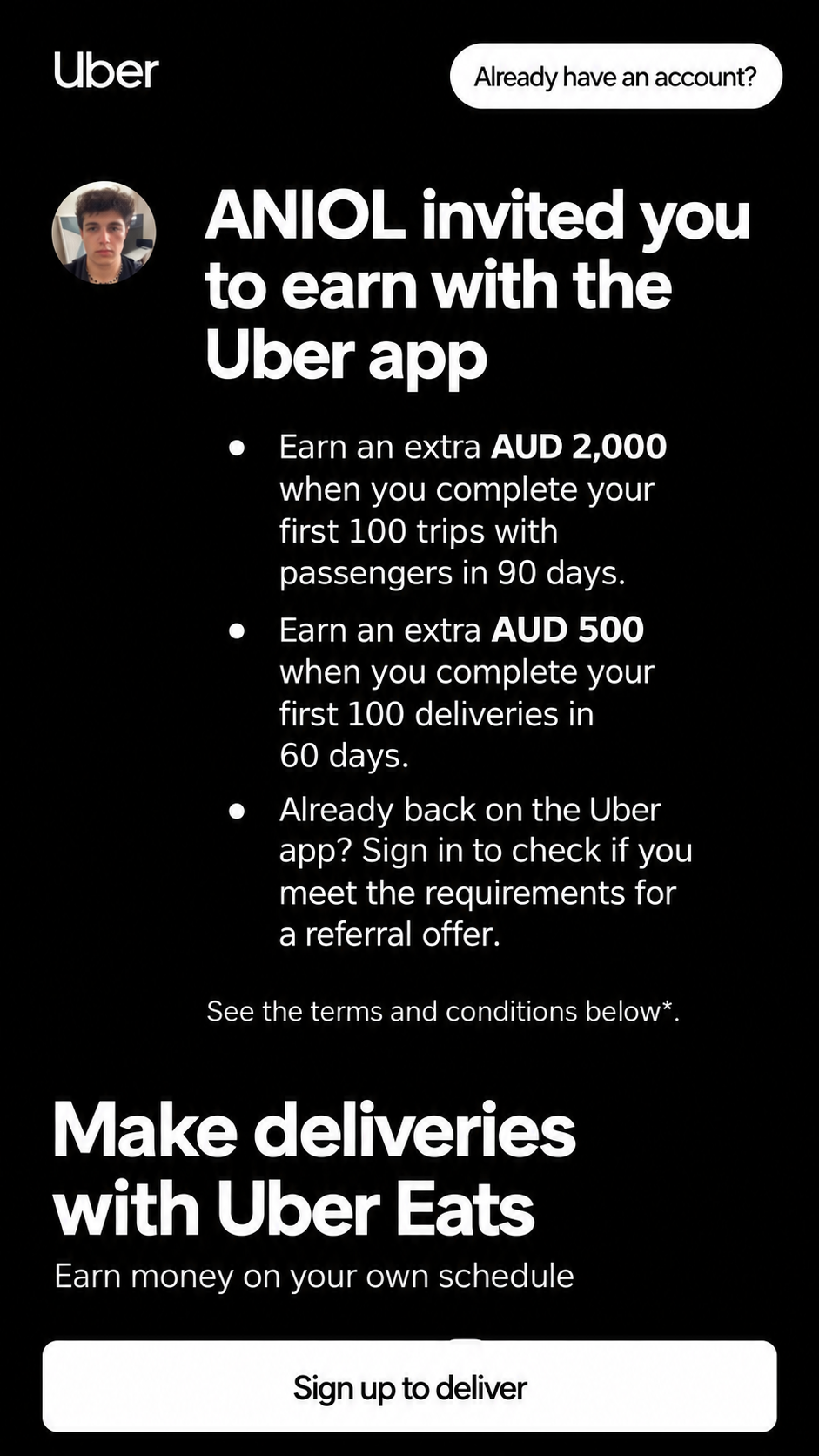
    Open the signup link

    Start from the button on this page. You should reach Uber’s official signup screen, similar to the example on the right.

    Uber signup referral invitation screen
    Uber signup referral invitation screen

    Example screenshot — promotions may have changed. Check the current offer above.

    Note. This website is not Uber. The next screens belong to Uber.

  2. Step 2 of 10

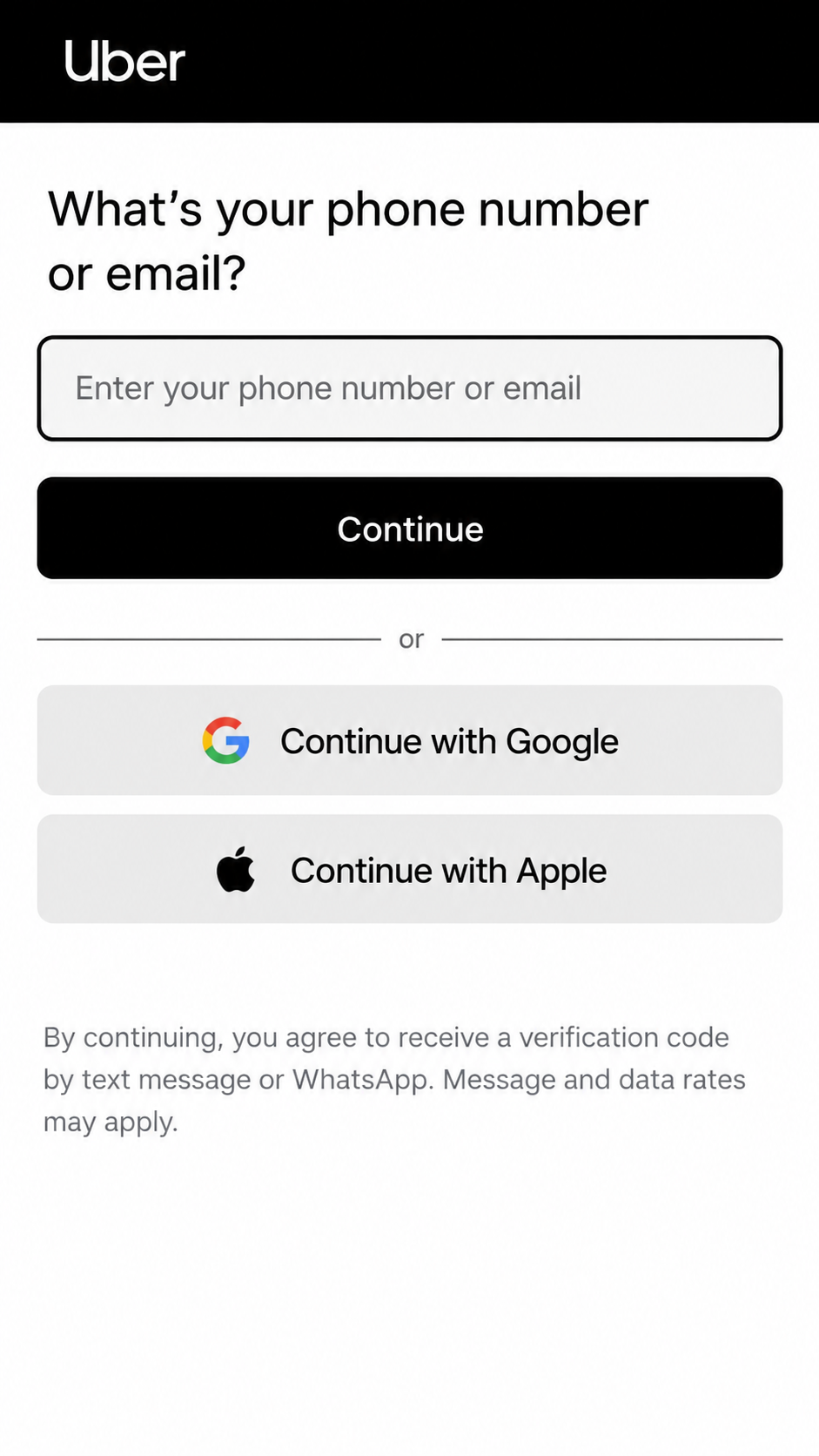
    Create or access your Uber account

    Enter the phone number or email you want linked to delivery, or continue with Google or Apple. If you already have an Uber rider account, you may be able to use the same details.

    Uber phone or email signup screen
    Uber phone or email signup screen
  3. Step 3 of 10

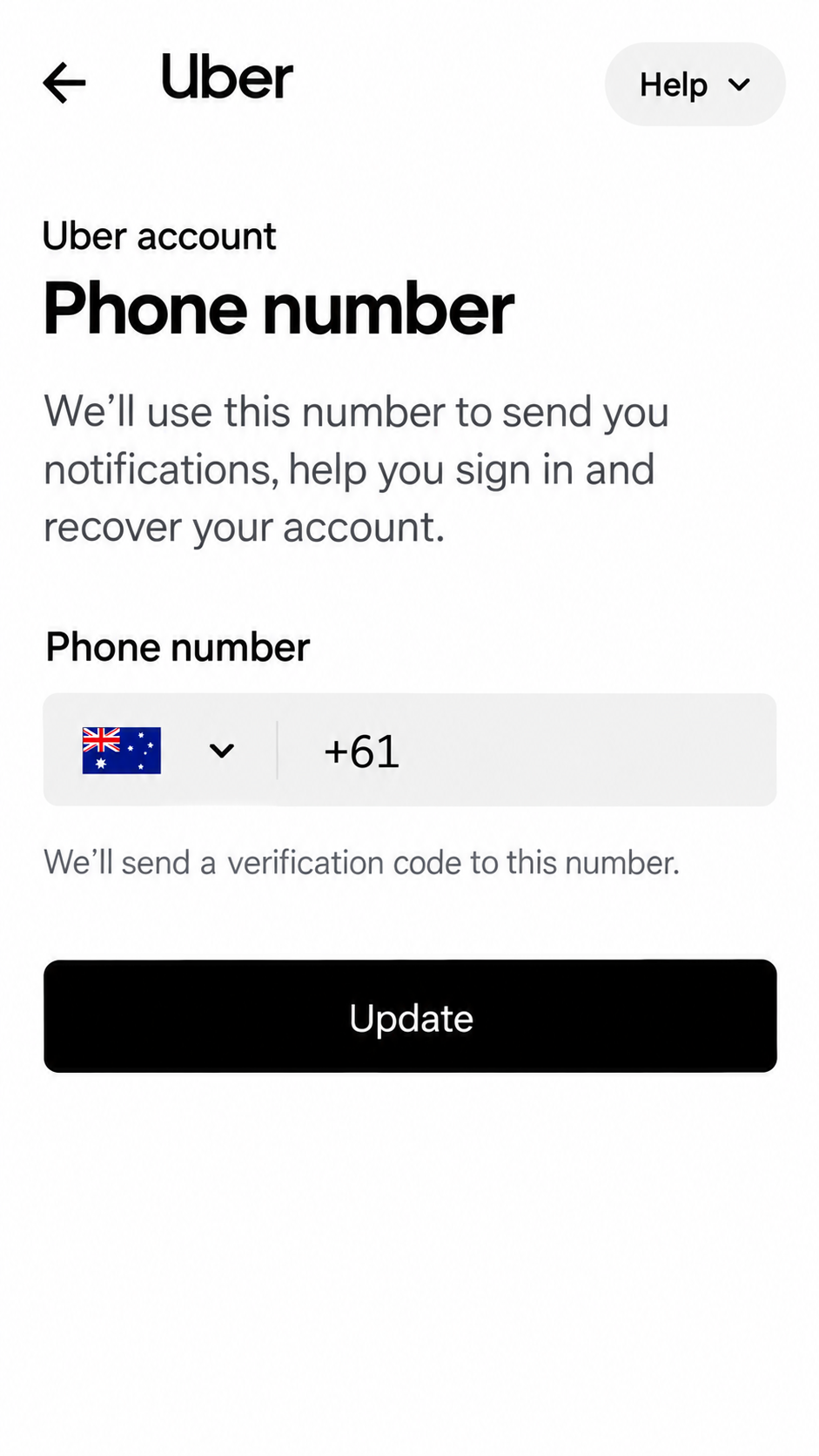
    Enter and verify your details

    Uber may ask you to confirm a phone number. Use a number you can access, and choose the country code that matches that number.

    Uber phone number signup screen
    Uber phone number signup screen

    Note. The example screenshot may show a different country code. Use your own details.

  4. Step 4 of 10

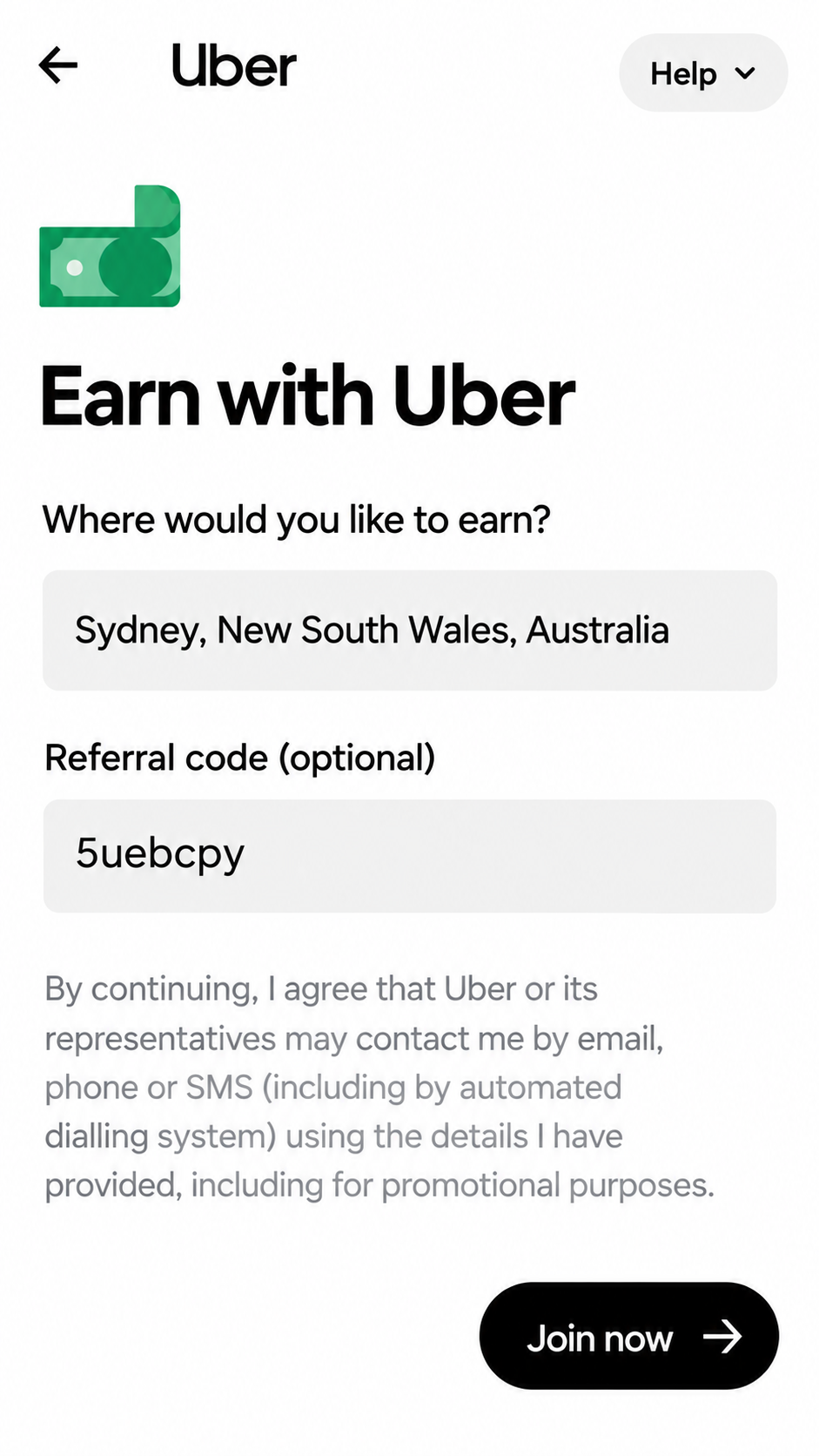
    Check the referral code

    This screen includes the optional referral-code field. The code inside the screenshot can be old. Use the current code from this guide, not the code printed in the photo.

    Uber referral code field in Sydney signup
    Uber referral code field in Sydney signup

    Important: Check your referral code

    Current referral code

    5uebcpy

    Referral codes and offers can change or expire. Use the current code shown on this guide and check the offer displayed by Uber during signup. The code inside the screenshot may be outdated. Entering a code does not guarantee a reward.

  5. Step 5 of 10

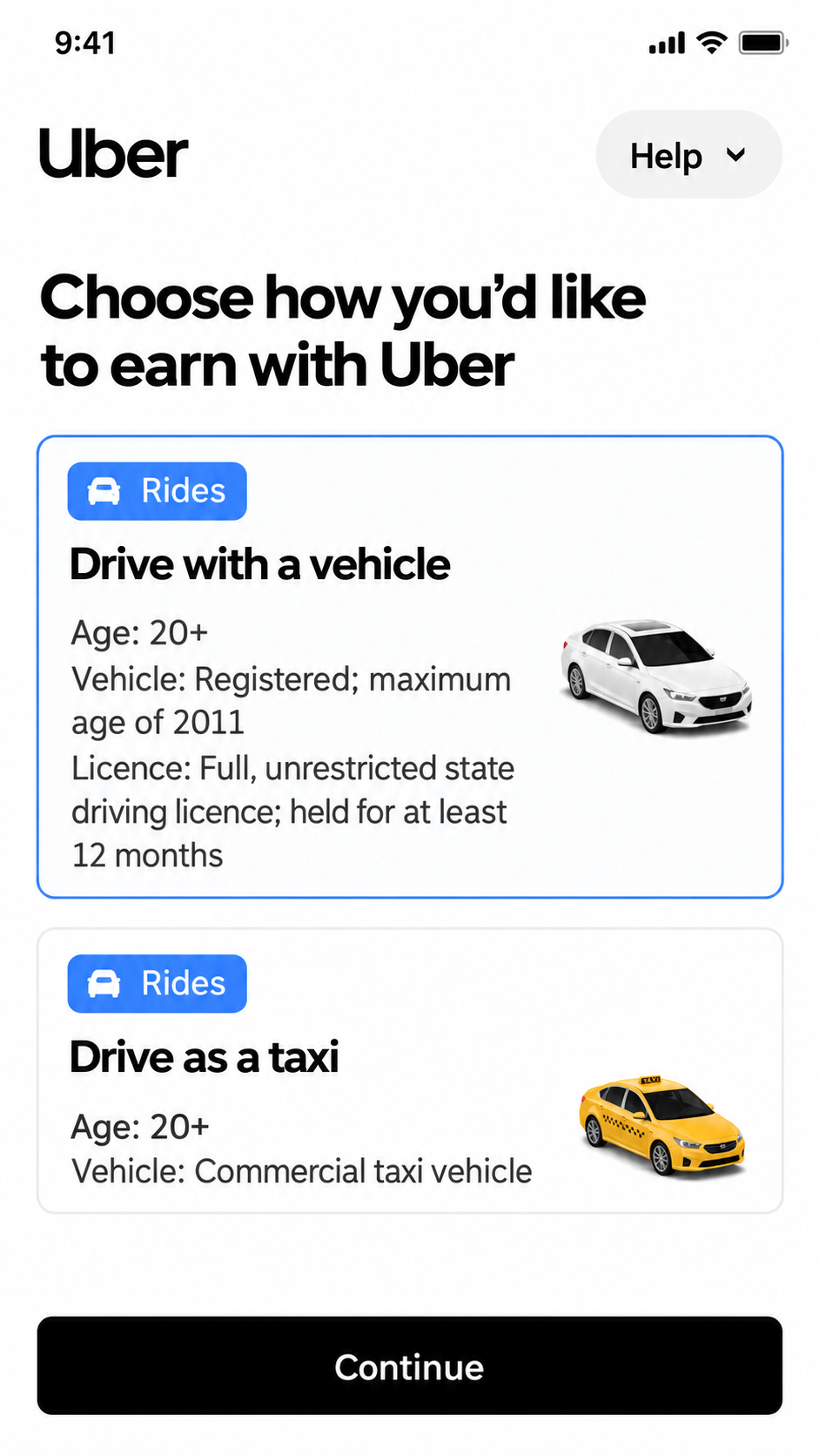
    Choose how you want to earn

    If you want to deliver food, choose an option labelled Delivery or Entrega. Do not choose passenger trips (Viajes) if you only want to do Uber Eats deliveries.

    Uber earning method selection screen
    Uber earning method selection screen

    Note. You may need to scroll to see the Delivery / Entrega options. The exact wording can change.

  6. Step 6 of 10

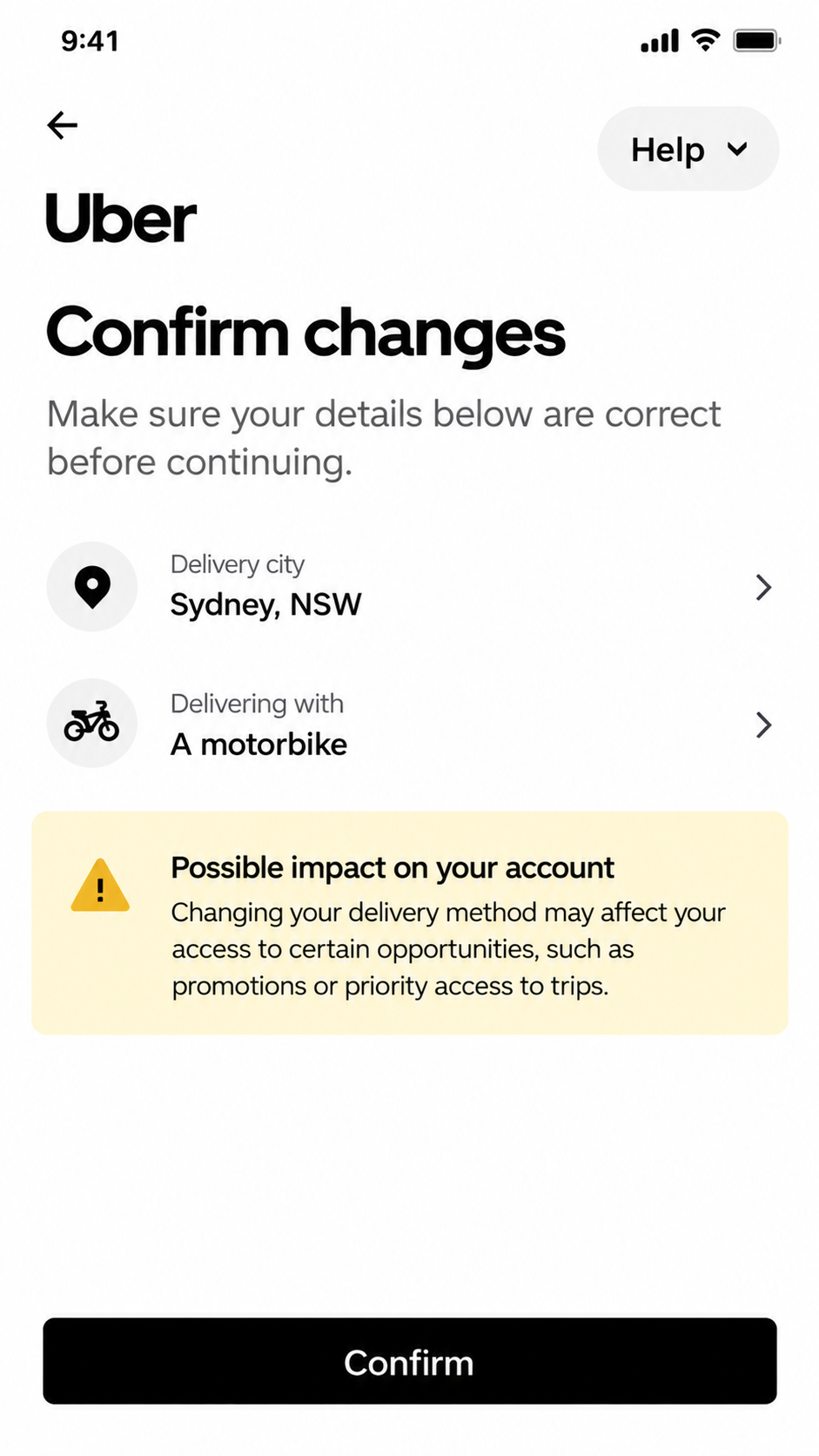
    Select motorbike or scooter delivery

    Choose motorbike or scooter if that is how you plan to deliver and if Uber offers that option in your city. Recreational e-scooters are generally not accepted.

    Uber motorbike delivery confirmation screen in Sydney
    Uber motorbike delivery confirmation screen in Sydney
  7. Step 7 of 10

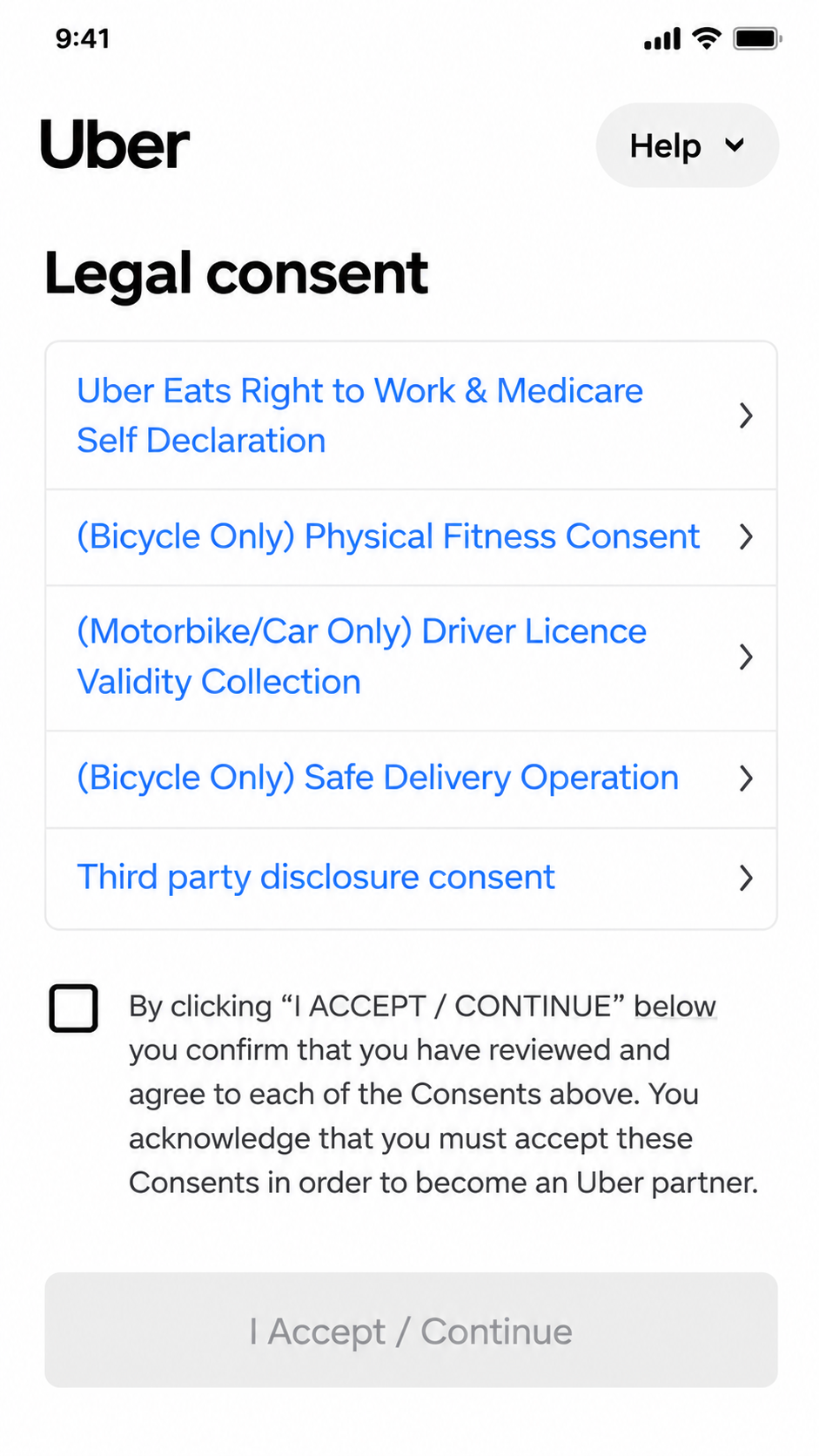
    Review and accept the legal consents

    Read the boxes Uber shows before you continue. Your list can include work-rights declarations and other legal notices. Only continue if you understand what you are agreeing to.

    Uber legal consent screen during delivery signup
    Uber legal consent screen during delivery signup

    Note. This example is from a bicycle signup in Sydney. The list can include bicycle-only or motorbike/car-only items depending on what you selected.

  8. Step 8 of 10

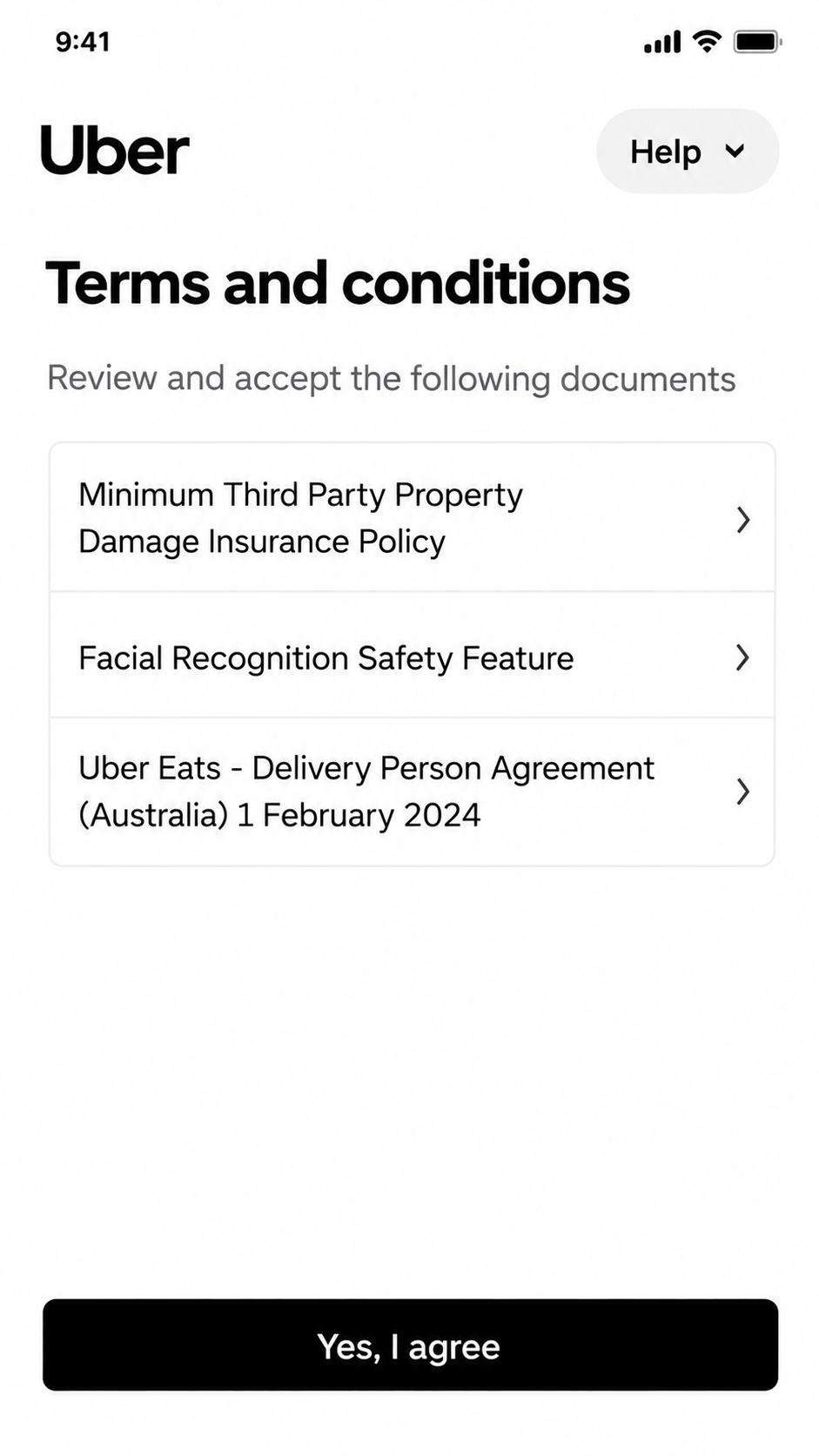
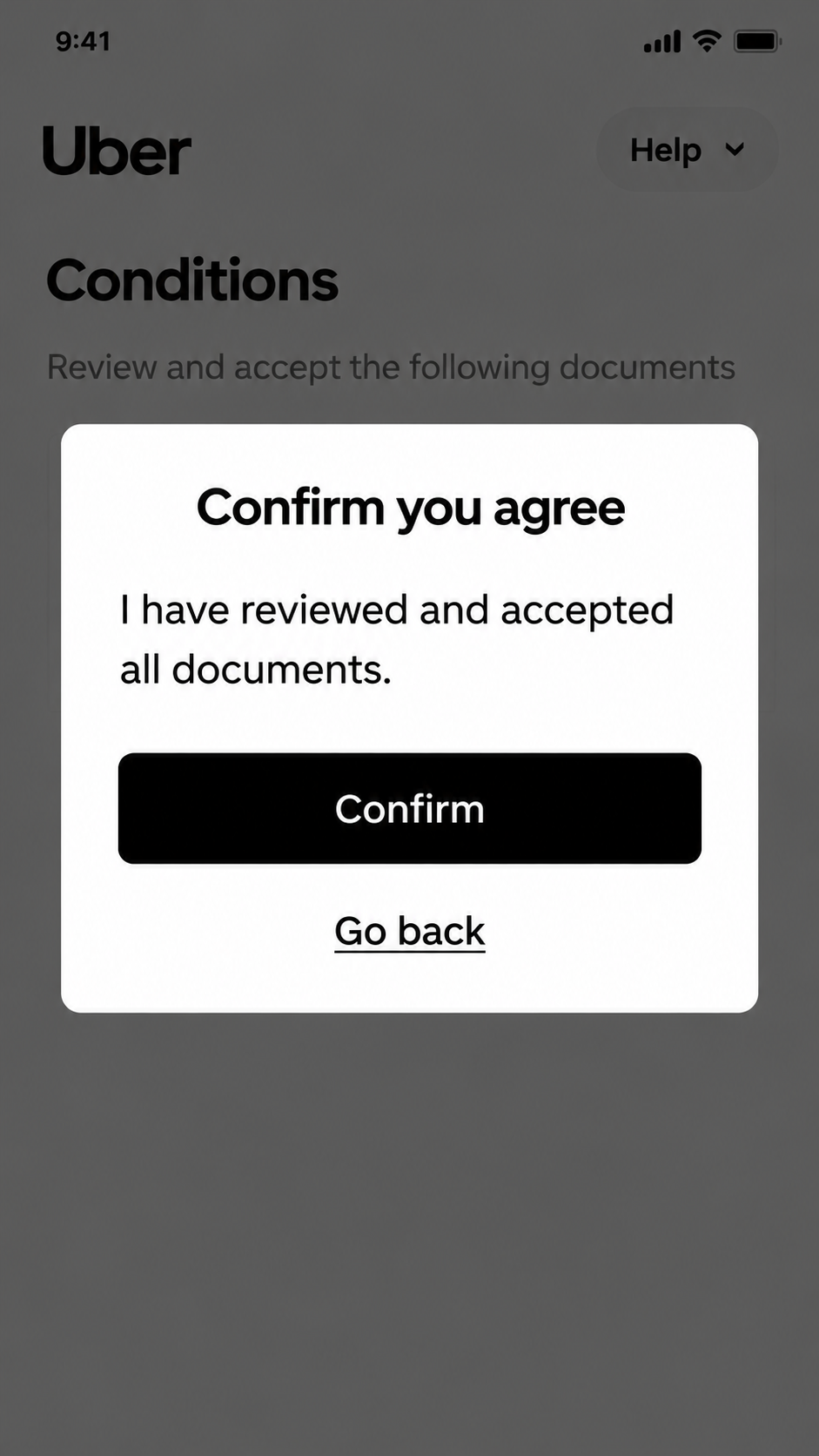
    Review and accept the required conditions

    Uber may ask you to open and accept conditions or documents. Take a moment to read them. The documents on your screen are the ones that apply to you.

    Uber conditions and agreement confirmation screens
    Uber conditions and agreement confirmation screens
    Uber conditions and agreement confirmation screens
    Uber conditions and agreement confirmation screens
  9. Step 9 of 10

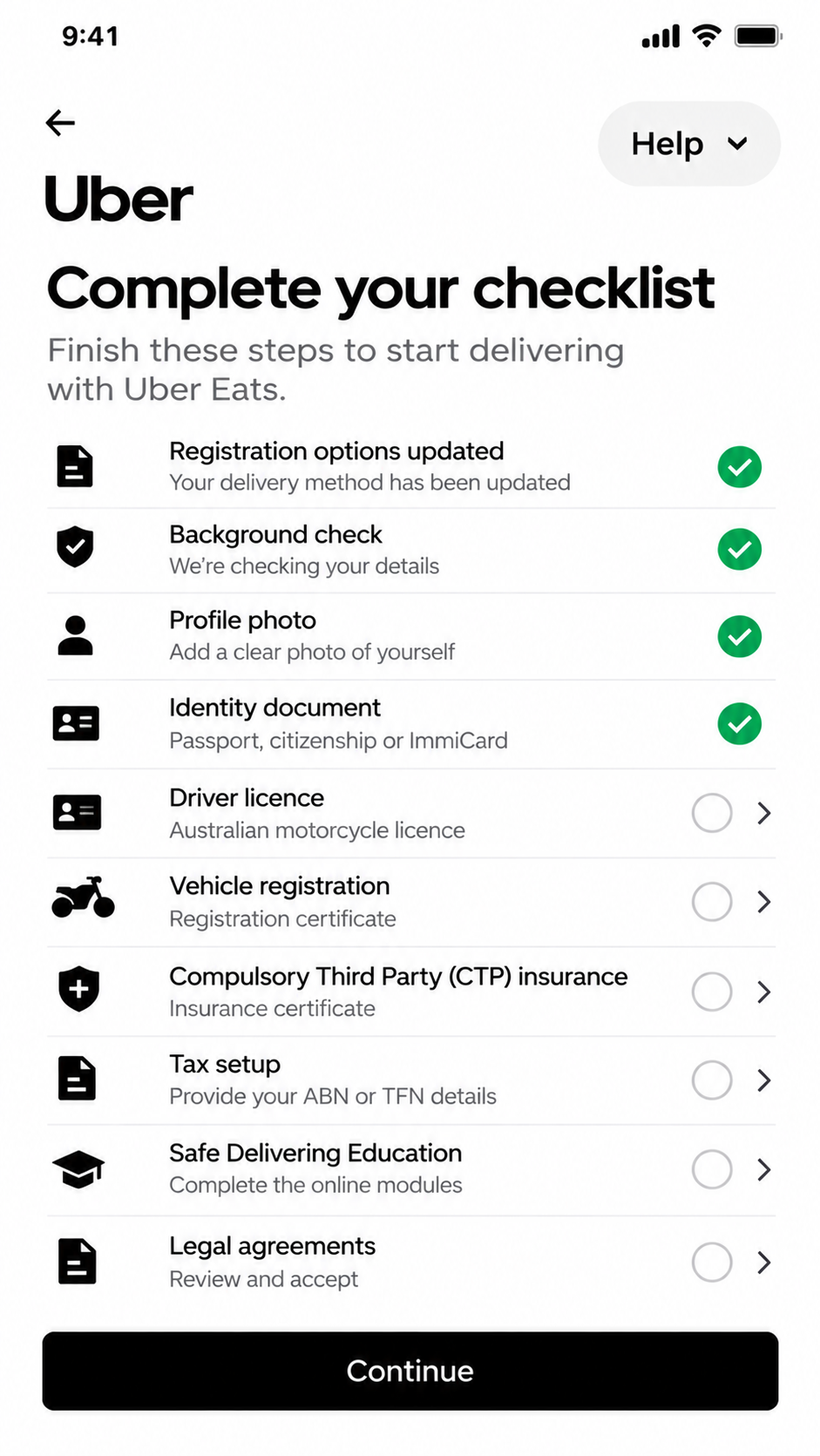
    Complete the remaining onboarding items

    Motorbike and scooter signup often asks for extra vehicle documents. This screenshot is from a motorbike signup. Only upload what Uber requests on your own screen.

    Uber motorbike delivery signup checklist
    Uber motorbike delivery signup checklist
    Examples you might see
    • Background check, if shown
    • Proof of identity
    • Profile photo
    • Driver licence, if Uber asks for one
    • Vehicle registration, if Uber asks for it
    • Tax setup, if shown
    • Safe delivering education, if shown

    This list is an example only. Complete the items Uber shows on your own account.

    Example screenshot — promotions may have changed. Check the current offer above.

  10. Step 10 of 10

    Finish what Uber still asks for

    Requirements can depend on your location and circumstances. Follow the motorbike list above and the instructions in the Uber Driver app until the remaining items are complete. Approval is not guaranteed.

    Note. If a document is rejected, Uber usually asks you to upload it again.

Uber may change the signup process and requirements. The screens shown are examples from a real signup in Australia.

Want to compare another vehicle?

Open a different tutorial, or jump back to the comparison.

Ready to begin signup?

When you are ready, continue through the official Uber process. Keep your ID nearby and use the same personal details throughout.